Outlook Configuration (NOT Outlook Express)
for use with mail.Omniweb.com
These instructions are based on Outlook 2007, but most versions of Outlook can follow along with these. For Outlook Express, click here.Please configure your email account as follows.
1
Click on Tools menu and choose Accounts
2
Select the default outgoing account and click "change".
3
Your Name: (what your email recipients will see).
E-mail Address: enter your correct email address.
Account Type: POP3 (or IMAP)
Incoming Mail Server: mail.omniweb.com
Outoing Mail Server: mail.omniweb.com
User Name: your full email address.
Password: self explanatory.
E-mail Address: enter your correct email address.
Account Type: POP3 (or IMAP)
Incoming Mail Server: mail.omniweb.com
Outoing Mail Server: mail.omniweb.com
User Name: your full email address.
Password: self explanatory.
4
Click on the "More Settings" tab and then the "Outgoing Server" tab. Check the box that says "My
outgoing server (SMTP) requires authentication" and then check the option "Use same settings as my incoming mail server"
Then click on the "Advanced" tab.
5
Incoming Server (POP3): 995 (recommended) 110 (alternate)
{ For IMAP use port 993 (recommended) 143 (alternate) }
Check "This server requires an encrypted connection (SSL)"
Outgoing server (SMTP): 587 (recommended) 25 (alternate)
Use the following type of encrypted connection: TLS or SSL
{ For IMAP use port 993 (recommended) 143 (alternate) }
Check "This server requires an encrypted connection (SSL)"
Outgoing server (SMTP): 587 (recommended) 25 (alternate)
Use the following type of encrypted connection: TLS or SSL
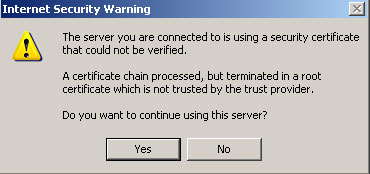
If you receive a warning message like this while checking or sending mail, click "Yes" to continue.
This can usually be resolved by changing your incoming server, on the servers tab, from mail.YOUR_DOMAIN to mail.omniweb.com
©2026 - Omniweb.com
For further reading, see Microsoft's Guide: How to create and configure an email profile in Outlook.